AI Design Generator
Create Marketing Images Just by Chatting
Turn one sentence into a ready-to-post marketing design. Get promo posts, web banners and event invitations in minutes, without a designer.
What You Can Create with AI Design Studio
AI Social Media Post Generator
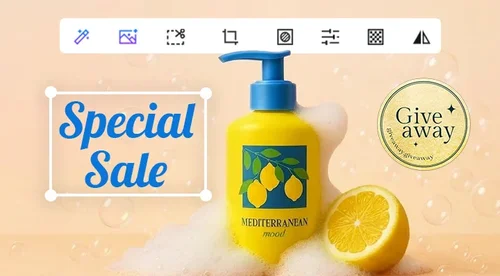
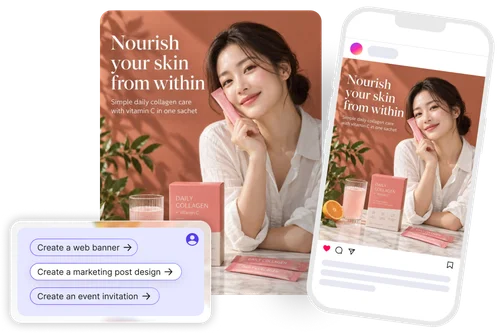
Create promo posts for Instagram, TikTok or X to announce a sale, a new arrival or a seasonal campaign. Tell the AI design assistant what you're promoting, and it writes the headline, lays out the design and matches your brand style. If you don't have a product photo yet, describe the product and get a realistic concept image.
AI Event Invitation and Poster Maker
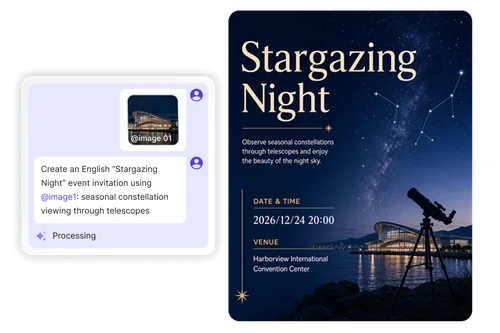
Plan a product launch, webinar, workshop or company party and get an invitation or event poster that's ready to share. The AI design assistant asks for the event name, date, time and venue in a short form, suggests a few styles, and puts every detail in the right place. Make a version in another language for international guests.
AI Profile Picture Generator for Business
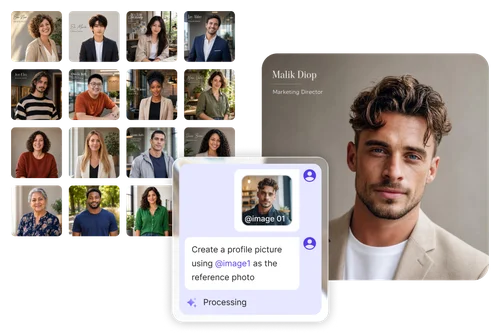
Turn a casual selfie into a professional profile picture with your name, job title, and a short tagline designed right into the image. Upload your photo, then explore the inspirations below for styles suited to business coaches, realtors, attorneys, researchers, and more. Use your finished profile picture on LinkedIn, X, or your website.
How to Create Marketing Images with AI Design Studio
Step 1: Describe Your Idea
Type what you want to make, such as a sale post or a web banner. One sentence is enough, or you can start from a quick-start prompt or a ready-made design idea.
Step 2: Confirm the Details
If key details are missing, the AI assistant shows a short form. Fill in items like the event name and description, pick a style, and click Confirm.
Step 3: Refine and Download
Ask for changes in the same chat until the image looks right, then download it. Every image is also saved to My Generated Assets for later.
The Benefits of AI Design Studio

Start with a Single Sentence
You don't need a creative brief or a long, detailed prompt. Type something like "Create a promo post for my new headphones," and the AI assistant takes it from there. If you'd rather not start from a blank box, tap a quick-start prompt or click one of the design ideas to generate a design right away.

The AI Assistant Fills in the Gaps
When your request is missing something important, the AI assistant asks for it in a short Confirm Information form instead of guessing. You fill in the essentials, such as the event name or product description, add optional details like the date or venue, and choose from a few suggested styles before it generates.

Edit Your Design by Chatting
Ask for a different color, a new headline or another size, and the AI assistant edits the image you already have. Every change happens in the same conversation, so it remembers what you asked for earlier and you never have to rebuild the design or rewrite your prompt from the beginning.

Professional Visuals Without a Photoshoot
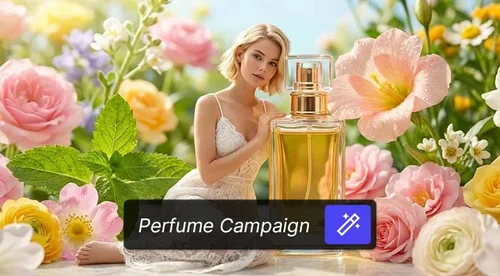
Skip the studio for both products and people. Describe a product you haven't photographed yet and get a realistic concept image for a promotion or pitch deck, or upload a casual selfie and turn it into a polished profile picture. You can also attach a sample design and tag it in your prompt to guide the look.
Any Size, Any Language
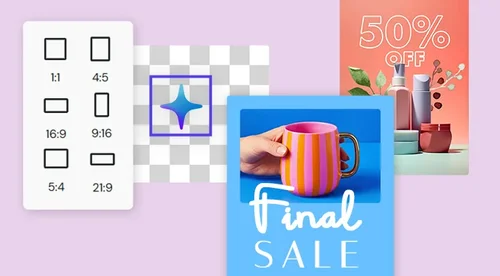
Pick 1:1, 4:5, 9:16 or 16:9, or set a custom width and height in pixels, so each post, banner or story fits its channel. Headlines and other on-image text can be in multiple languages, which lets you run the same campaign in different markets without redesigning it for each one.
Design Ideas Sorted by Category
Explore design ideas sorted by category, including Marketing Post, Web Banner, Event Invitation and Profile Pic, to find a starting point for each type of marketing asset. Click a design you like and AI Design Studio starts generating right away, so you skip the blank page and get a first draft to refine in the chat.
AI Design Studio FAQ
What is AI Design Studio?
AI Design Studio is an AI design assistant built for businesses that works like a chat-based AI image generator. You describe the image you need, and the built-in AI assistant asks for any missing details and creates it. It covers marketing posts, web banners, event invitations, profile pictures and other general business visuals.
What kinds of images can I create?
You can create social media posts, posters, flyers, web banners, ad creatives, event invitations, profile pictures and product concept images. It works for physical products, online courses and services. Explore design ideas sorted into Marketing Post, Web Banner, Event Invitation and Profile Pic to get started.
Do I need design skills or my own photos?
No. You can create a complete design from a text description alone, including concept images for products you haven't photographed yet. If you do have photos, upload them. A product shot or sample design guides the style, and a casual selfie can become a professional profile picture with your name and job title.
What happens if my prompt is missing details?
The AI assistant shows a short Confirm Information form. It asks for required details such as the name, a description, the aspect ratio and the language, and lets you add optional ones like a theme, date or venue. It also suggests a few styles to choose from. Click Confirm, and it starts generating your image.
Can I edit an image after it's generated?
Yes. Keep chatting to ask for changes, such as a new color, different text, another style or another size. The AI assistant edits the image in the same conversation and remembers what you asked for before, so you don't have to start over. Your images are saved to My Generated Assets, where you can download them later.
Is AI Design Studio free to use?
Yes, you can start for free. AI Design Studio includes free generations so you can try it out. After that, generating images uses credits from your MyEdit Business account, and a subscription plan gives you more credits if you create images regularly. You can also earn free credits from your account.
Which sizes and languages are supported?
Choose 1:1, 4:5, 9:16 or 16:9, or enter a custom width and height in pixels. On-image text such as headlines and badges can be in English, Japanese, German, Italian, French, Spanish, Chinese and more. Pick the language from the settings menu next to the prompt box before you generate your image.