AI Video Generator
Create On-Brand AI Videos From Text
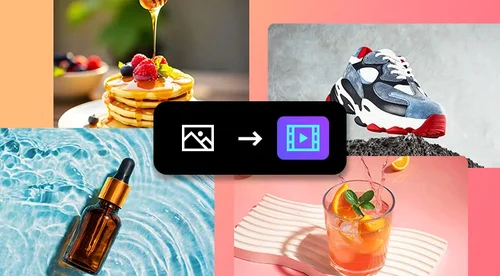
Generate publish-ready video from a prompt, an image, or a reference clip. Choose the AI model that fits your project, no reshoot required.
Where Business Teams Use AI Video Generator
Combine Multiple Assets Into One Scene Without a Reshoot
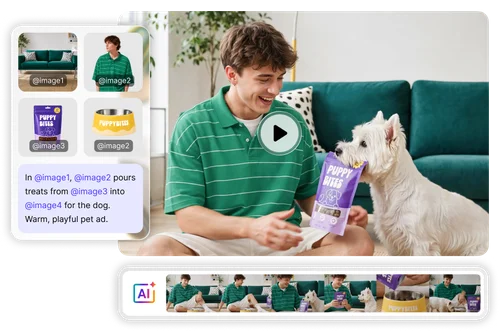
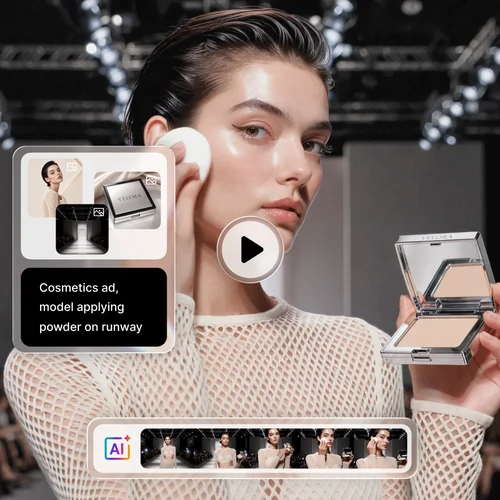
Tag your product shot, model, and background scene with @ in a single prompt. AI combines all three into one cohesive, on-brand video, helping your team avoid studio bookings, wardrobe coordination, and costly reshoots when clients request another variation.
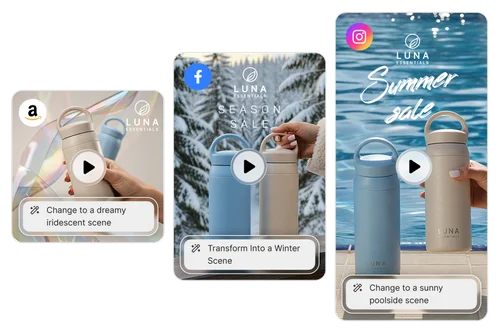
Adapt One Reference Set to Every Channel's Format
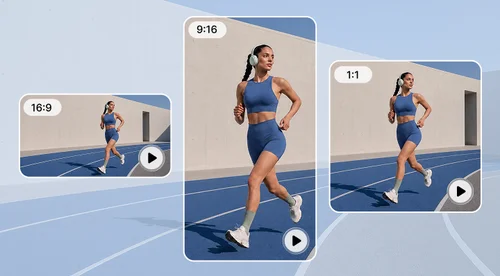
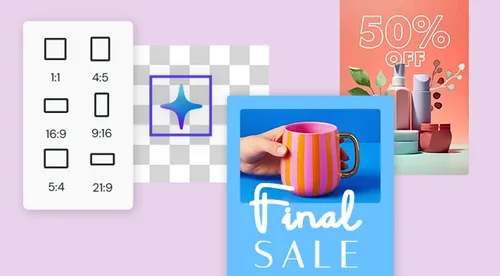
Keep the same tagged reference assets and swap only the prompt to produce versions built for your ecommerce listings, your social feed, and your paid ad campaigns. Instead of briefing a new shoot or re-laying out creative for every channel, your team reuses one reference set to stay ahead of trends and cover every channel from a single starting point.
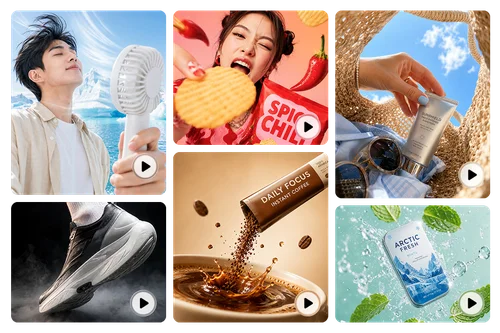
Visualize Text Concepts Before the Cameras Roll
Generate a draft video from nothing but a text prompt while your concept is still just an idea, before any photography or filming has happened. Your marketing team, your agency, and your client can react to an actual moving visual instead of a mood board, so everyone agrees on direction before you commit budget to a real production.
How to Create a Video with MyEdit Business
Choose Your AI Model
Compare available AI video models by style, output quality, and credit cost, then pick the one that matches this project's budget and look.
Add Your Prompt and Tag Your Assets
Type your creative brief as a prompt, then upload product photos, model shots, or a reference video and tag each one with @ to tell the AI exactly what to use.
Generate and Download Your Video
Generate your video directly in the browser, review the result, and download it, ready for your listing, ad, or social post. No installation needed.
Why Business Teams Choose AI Video Generator
Reuse the same tagged reference assets across every video in a weekly series or a multi-part ad campaign, so the same character, mascot, or spokesperson looks and moves consistently from one episode to the next. Your audience recognizes your brand instantly, instead of noticing a different face or a slightly off color palette in every new upload.
Switch between multiple AI video models on a project-by-project basis instead of being locked into one engine's look and price. A quick internal draft can run on a lower-cost model, while a client-facing hero video can use a higher-fidelity one, so your budget always matches what each individual project actually needs.
Bring in JPG, PNG, GIF, WebP, and BMP images, or MP4 and MOV video, exactly as they already exist on your drive. Your team never has to stop mid-project to convert a file, track down a compatible version, or ask a designer to re-export something, which keeps your existing asset library fully usable from day one.
Upload a reference video alongside your prompt so the AI mirrors its camera movement, cut pace, and composition instead of guessing from text alone. This gives your team a way to lock in a specific look, like a fast-paced product reveal or a slow brand story, without writing an increasingly long and imprecise description.
Run the same script and reference assets through several AI models to see several finished directions side-by-side before your team commits. Agencies use this to bring clients two or three real options instead of one guess, and in-house teams use it to settle internal style debates with actual output instead of opinions alone.
Reference any uploaded product, person, or scene by tagging it directly with @ instead of writing a paragraph trying to describe it in words. This removes the guesswork between what you meant and what the AI generated, so you spend less time rewriting prompts and re-running generations to correct a misunderstood description.
More Ways to Create with MyEdit Business
FAQ: AI Video Generator for Business
What is an AI video generator?
An AI video generator turns a text prompt, and optionally an image or reference video, into a new video clip. MyEdit Business lets you tag specific uploaded assets in your prompt with @ and choose from multiple AI models, so the output reflects the exact product, person, or scene you have in mind rather than a generic interpretation of your text.
Can I generate more than one video at a time?
Each generation currently produces one video clip from one prompt, so there is no batch or bulk mode for this tool. That single-generation focus is deliberate: it keeps you in control of the model, the tagged assets, and the prompt for every clip, which matters most when you are producing a hero video or a specific campaign concept rather than processing a large catalog at once.
Do I need video editing or production experience to use this?
No. You write a prompt, tag any assets you want included, pick a model, and generate, all in your browser without installing software or operating a timeline-based editor. Marketers and content creators without a production background use it to visualize an idea, while agencies use it as a fast way to explore directions before booking a full shoot.
Can I use the videos I generate for commercial purposes like ads or product listings?
Yes. Videos you generate with MyEdit Business are yours to use across your commercial channels, including paid ads, product listings, and social campaigns. This is built for business use from the ground up, so you can move a generated clip straight into your marketing workflow without a separate licensing step. Just make sure that you hold the rights or proper licensing for all uploaded media.
Does this work for Amazon, Shopify, Etsy, and other selling platforms?
Yes. Because the output is a standard video file, you can upload it to Amazon listings, Shopify product pages, Etsy shops, or any other marketplace or storefront that accepts video. Teams also reuse the same clip across Instagram, Facebook Ads, and Google Display by adjusting the prompt for each channel's format.
How is this different from Product Video Maker or AI Video Ad Generator?
AI Video Generator gives you the most creative control: a text prompt, tagged reference assets, and a choice of AI models for custom scenes. Product Video Maker turns one product photo into a templated short video in a few clicks. AI Video Ad Generator assembles a large batch of photos and videos into a complete ad with voiceover, captions, and music.
Is there a free trial for AI Video Generator?
Yes. New users get one free generation on AI Video Generator at the most affordable model setting, so you can test how a text prompt and tagged assets turn into a finished clip before spending credits. Standard generations after your free one are priced per model, since more advanced models cost more credits per second of video.
What image or video formats can I upload as reference assets?
You can upload JPG, PNG, GIF, WebP, and BMP image files, or MP4 and MOV video files, as reference assets to tag in your prompt. This covers the file types most product photos, model shots, and existing marketing clips are already saved in, so you rarely need to convert anything before you start.
Which AI video models can I choose from?
MyEdit Business offers a wide and continuously expanding selection of AI video models, including top industry engines like Seedance 2.0, Veo 3.1, Happy Horse 1.1, Kling O3, and Vidu Q3, with new models or feature updates added almost every month. Because these models differ in visual style, output quality, and credit cost, you can match a model to a quick internal draft or to a polished client-facing video.