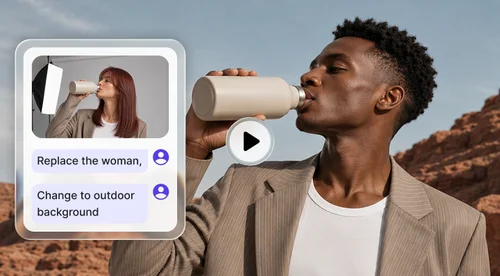
Online Video Editor for Business
Turn Raw Product Footage Into Videos That Sell
Trim, caption, and polish product demos and UGC in your browser, with AI subtitles, music, and text on one timeline.
Where Ecommerce Teams Use an Online Video Editor
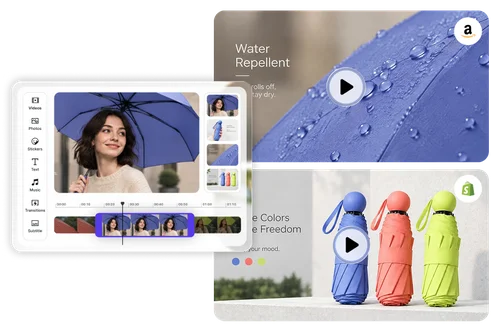
Cut Phone-Shot Demos Into Amazon Listing Videos
Most sellers film product demos on a phone, and the raw take is full of pauses, fumbles, and off-angle moments that shoppers skip. Trim the slow parts, reorder your best shots on the timeline, add text callouts for key specs, and apply Background Blur to keep the product in focus, then export a clean video for your Amazon listing or Shopify product page.
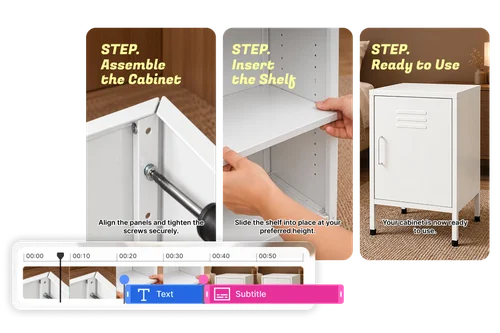
Turn Common Setup Questions Into a Product Tutorial
When photos alone don't show shoppers how to assemble or use your product, the same questions keep coming back in reviews, messages, and return requests. Cut your demo footage into clear steps on the timeline, label each one with a text callout, and add AI subtitles from your narration, so the tutorial on your product page answers those questions before a customer has to ask.
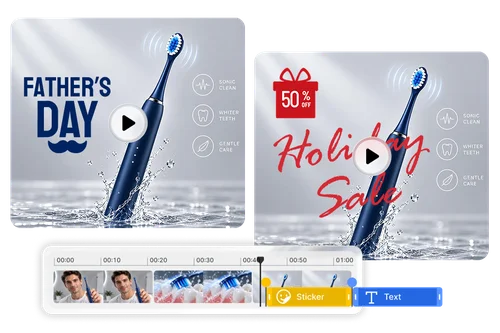
Refresh Last Season's Product Video for a New Sale
Before every Black Friday or Prime Day, many teams rebuild the same product video just to change a price or a promo line. Keep your original footage, edit only the text layer with the new offer on the multi-track timeline, and reopen the saved project for the next sale, so each sale-ready version is a few text edits instead of a fresh edit from scratch.
How to Make a Product Video with MyEdit Business
Upload Your Product Footage
Drag MP4, MOV, or other major video formats into the editor, along with product photos or an existing SRT subtitle file. Nothing to install.
Edit on the Multi-Track Timeline
Trim and arrange clips, generate subtitles from speech with AI, then add text, music, transitions, and Background Blur where you need them.
Export and Publish Your Video
Export in high quality and upload to your Amazon listing, Shopify page, or ad account. Projects autosave, so every edit stays ready to revise.
Why Ecommerce Teams Choose This Online Video Editor

AI Subtitles From Speech, Ready for Muted Feeds
Most shoppers scroll with the sound off, so a spoken demo without captions loses its message. The editor turns every spoken word in your footage into subtitles with AI, making it a practical social media video editor: you review the wording instead of typing and timing each line by hand.

Reuse SRT Files From Agencies or Translators
If your captions already exist, upload them as an SRT file instead of starting over. Edit, style, and sync those subtitles against your video on the same timeline, so work from a translator, an agency, or an earlier campaign stays reusable when you recut a product video.

Layer Footage, Text, and Audio on Separate Tracks
A product video rarely comes from one clip. The multi-track timeline lets you stack demo footage, still product photos, spec callouts, stickers, and music on their own tracks, so you can change one element, like swapping a price callout, without disturbing the rest of the edit.

Keep Shoppers Focused With Background Blur
Home and warehouse shoots often include clutter behind the product that competes for attention. Apply the Background Blur effect to soften what sits behind your item, so shoppers focus on the details you want them to see without reshooting in a studio or building a set.

Royalty-Free Music and Sound Effects Built In
Background music and sound effects, from cinematic hits to whooshes and ambient audio, are built into the editor's royalty-free library. Your team can score a product video in the same place it cuts one, instead of paying for a separate stock-audio subscription.

Autosaved Projects You Can Reopen on Any Device
Projects save to the cloud automatically as you work, so an edit started on the office desktop can be finished on a laptop at the warehouse. Everything runs in your browser with nothing to install, so a busy selling day never costs you the progress on a half-finished video.
Online Video Editor for Business — FAQ
What is an online video editor?
An online video editor lets you cut, arrange, and polish video in a web browser without installing software. MyEdit Business adds a multi-track timeline, AI subtitles generated from speech, text templates, transitions, a Background Blur effect, and royalty-free music, so ecommerce teams can turn raw product footage into finished videos in one place.
Can I combine multiple clips, photos, and audio in one video?
Yes. The multi-track timeline holds video clips, product photos, text, stickers, music, and sound effects on separate tracks, so you can build a full product story from several short takes. Trim or split each clip, rearrange scenes in any order, and adjust individual layers without rebuilding the whole edit.
Do I need video editing experience to use it?
No. Drag-and-drop editing, preset text templates, and ready-made transitions cover what most product and social videos need, and AI handles the most time-consuming part by writing subtitles from your footage's speech. Sellers and marketers without a production background use it to publish polished videos without hiring a freelance editor for every clip.
Can I use my edited videos for ads and product listings?
Yes. The videos you export are yours to use across your commercial channels, including product listings, paid social ads, and your own storefront, and the built-in music and sound effects come from a royalty-free library. Just make sure you hold the rights to any footage, photos, or creator content you upload, especially UGC supplied by third parties.
Does it work for Amazon, Shopify, Etsy, and social platforms?
Yes. Your finished edit exports as a standard video file you can upload to Amazon listings, Shopify product pages, Etsy shops, and eBay, as well as Instagram, TikTok, and Facebook Ads. If you need a vertical version of a horizontal video for social feeds, run the exported file through Video Auto Reframe after editing.
How is this different from Product Video or Video Edit by Chat?
The Video Editor is for footage you already have: you control every cut, caption, and layer on a timeline. Product Video turns a product photo into a short clip with AI templates or prompts, Video Edit by Chat changes a video from a text instruction, and AI Video Ad Studio assembles your photos and clips into a complete ad.
What video and subtitle formats can I upload?
You can upload all major video formats, including MP4 and MOV, and drag them straight into the editor. For captions, the editor supports SRT subtitle files, so you can import existing subtitles to edit, style, and sync, or skip the file entirely and let AI generate subtitles from the speech in your video.
How do I add subtitles to a video automatically?
Upload your video, then use the AI subtitle feature to turn the speech in your footage into subtitles on the timeline. Review the text, correct any product names or specs that were misheard, and style the captions to match your brand. This replaces hours of manual captioning and keeps your videos readable on muted feeds.
Is my footage secure when I upload it?
Yes. Uploads are encrypted in transit, and projects are stored in your private account with autosave, so unreleased product footage and campaign drafts stay in your workspace. Because every project saves to the cloud, you can pick up an edit on another device without exporting and re-uploading work files.